Dashboard Filter Best Practices
Download PDFSpeed up LogZilla dashboards by matching message patterns once in a rewrite rule that sets a tag, then filtering widgets on the tag instead of message text
Dashboard Filter Best Practices
A widget that filters on message text re-evaluates that text for every event in its time range each time it refreshes. Moving the match into a rewrite rule that sets a tag does the work once, at ingest, and lets the widget filter on an indexed tag value instead. The pattern below applies to any keyword-style message filter.
The slow pattern: multi-term message filters
A security dashboard often starts with a widget whose message filter is a list of keywords:
textattack* | exploit* | vuln* | threat | malicious
Every refresh evaluates this expression against the message text of every event in the widget's time range. Each wildcard term is a prefix or infix search, an expensive form of search (see Search Syntax). Several widgets with similar filters on one dashboard multiply the cost, and the cost grows with the number of events in the time range, not with the number that match.
The fast pattern: match once, tag, filter on the tag
- A rewrite rule matches the keywords once, when the event is ingested, and
sets a user tag such as
Attack Patternto1. - The widget filters on the user tag
Attack Patternwith the value1.
The tag is a single indexed value. Filtering on it does not touch message text, and the same tag serves every widget, trigger, and report that needs the same distinction.
Step 1: Create the rewrite rule
Save the rule as a YAML file, for example attack-pattern.yaml:
yamlrewrite_rules:
- match:
- field: message
op: eq
value:
- "*attack*"
- "*exploit*"
- "*vuln*"
- "*threat*"
- "*malicious*"
tag:
Attack Pattern: "1"
Under op: eq the * characters are wildcards, and the match ignores
letter case unless the entry sets ignore_case: false. Listing several
values matches an event when any one of them matches. (The =* operator is
a literal substring test and treats * as an ordinary character, so it is
not the right choice here.) Tag values are strings, so the flag value is
written as "1".
tag is an action of the rule, so it sits at the same indentation as
match, not inside a condition. A tag block indented under a condition
is ignored: the rule validates and installs but changes nothing. Running
the rule's tests with logzilla rules test --path catches that before the
rule is installed (see Rule Test
Fixtures).
Rewrite rules have no dashboard UI; add the rule from the LogZilla server shell:
bashlogzilla rules add /path/to/attack-pattern.yaml --name "100-attack-pattern"
logzilla rules add validates the file, runs the rule's tests when a test
file named after the rule exists, installs and enables the rule, and
reloads the rule set. To re-check installed rules later, run
logzilla rules validate "100-attack-pattern" (a rule-name filter) or
logzilla rules validate --all.
Rule order
The parser runs the apps' Lua rules first and rewrite rules such as this
one afterwards, so the tag is added after the vendor app has parsed the
event. That is fine for dashboard filters, which only need the tag to be
present when the event is stored. Among rewrite rules, name order applies,
which is what the 100 prefix is for; a name without a prefix sorts after
every numbered rule. See Rule order in Rewrite
Rules for the
full sequence and the prefix ranges.
Rule syntax, operators, and the CLI are documented in Rewrite Rules. When the match needs branching logic or extraction that a rewrite rule cannot express, a Lua rule can set the same tag.
Step 2: Filter the widget on the tag
- Open the widget's options menu (the three-dot icon) and select Edit.
- In the Filter section, open the User Tags dropdown, type
Attackin its "Type to filter" box, and open theAttack Patternrow. - Under Include, select the value
1. - Remove the message filter and save the widget.
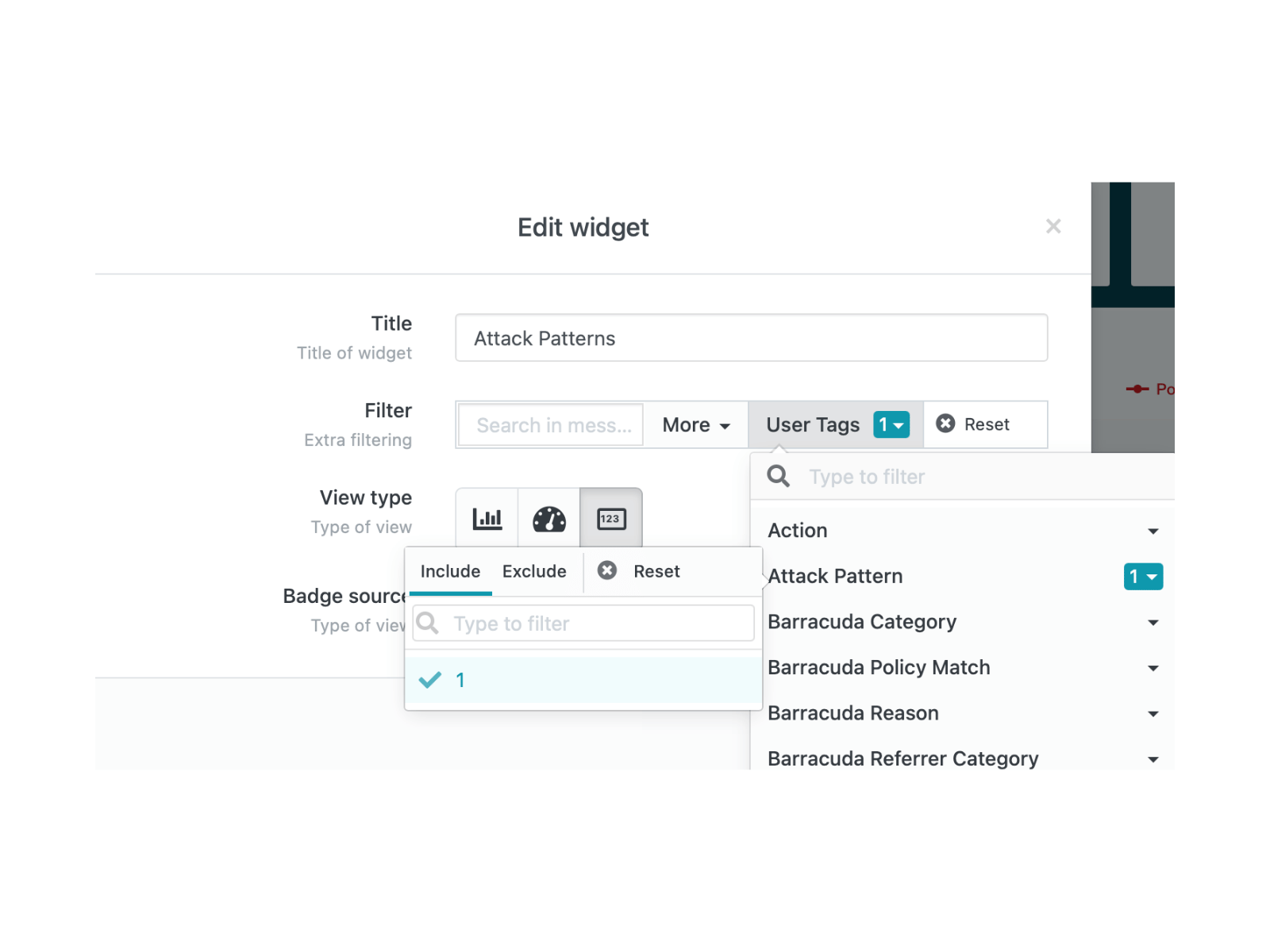
User tag filters are described in detail in Creating Your Own Widgets.
Verification
-
Confirm that new events carry the tag:
bashlogzilla events values --scope tags --limit 50 -
Compare the widget's results before and after the change over the same time range. Newly ingested matching events appear under both filters; older events appear only under the message filter (see Caveats).
Caveats
- The tag exists only on events ingested after the rule was enabled. Historical events still need the message filter until they age out of the dashboard's time range.
- Keep the tag value bounded. A flag such as
"1"is one value. Tagging the matched word, or any free text, turns the tag into a high-cardinality field, and a TopN widget grouped by a high-cardinality tag falls back to a full scan of its time range instead of the fast aggregate path. - Leave the widget's own time range unset so it inherits the dashboard's. A widget that overrides it with a long range scans that whole range on every refresh, however selective the filter is.
- A rewrite rule matches only what it lists. Extend the value list, or move to a Lua rule, when the keyword set grows or needs context.